How to Round Corners of All Images in Squarespace: A 3-Step Guide [2026]

By Nick Croce
Short answer: go to Website → Website Tools → Custom CSS, paste img { border-radius: 10px; } and save. Every image on the site gets rounded corners; change 10px for a softer or sharper curve. For a single image, the Design tab slider does it without code.
Rounding the corners of your photos can add a stylish and modern look and feel to your Squarespace website.
Changing the corner radius on image blocks with the design menu in Squarespace 7.1 is super simple.
If you have a lot of images on your site though, you probably don’t want to change every image one by one. Not only this, but some sections in Squarespace don’t have an option to adjust the corners.
What about list items, blog summaries, or project thumbnails in your portfolio? There is no option to edit these by default.
Not unless you have the handy CSS code to fix this, that is!
Opening the custom CSS Editor
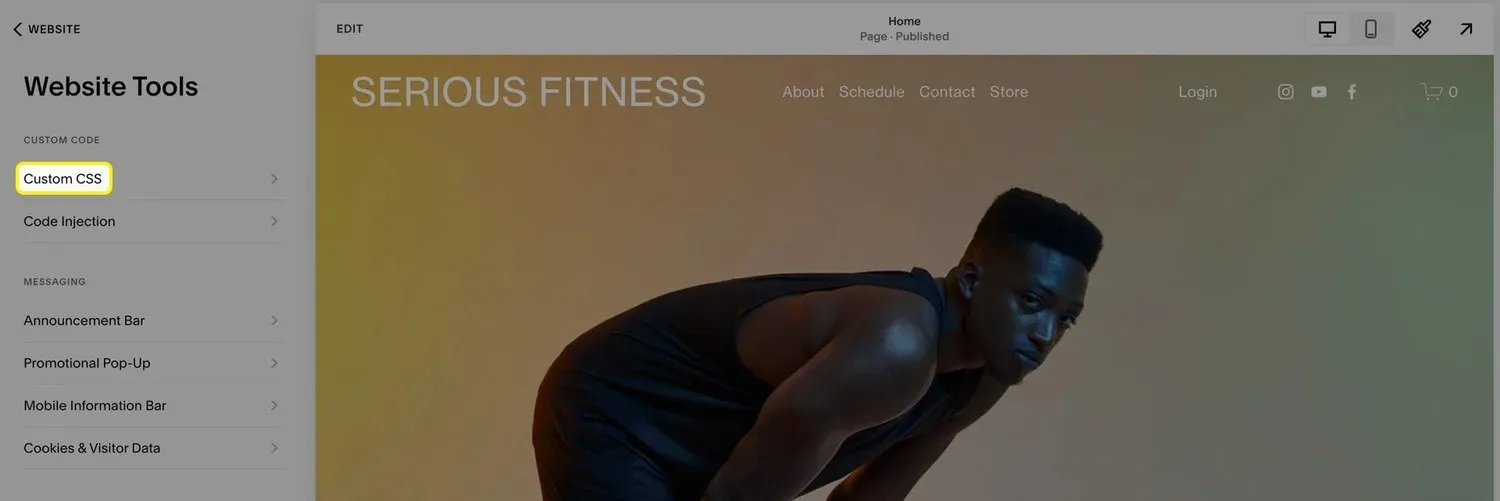
To get started, log in to your Squarespace account and open your site. On the left menu, click “Website”.

Next, scroll down and click “Website Tools” under “Utilities” in the menu.

Inside of the “Website Tools” section, click on “Custom CSS” to access the CSS editor in Squarespace.
Paste the css code
Now that we’re in the Custom CSS editor, all we need to do is copy and paste the below code.
img {
border-radius: 10px;
}
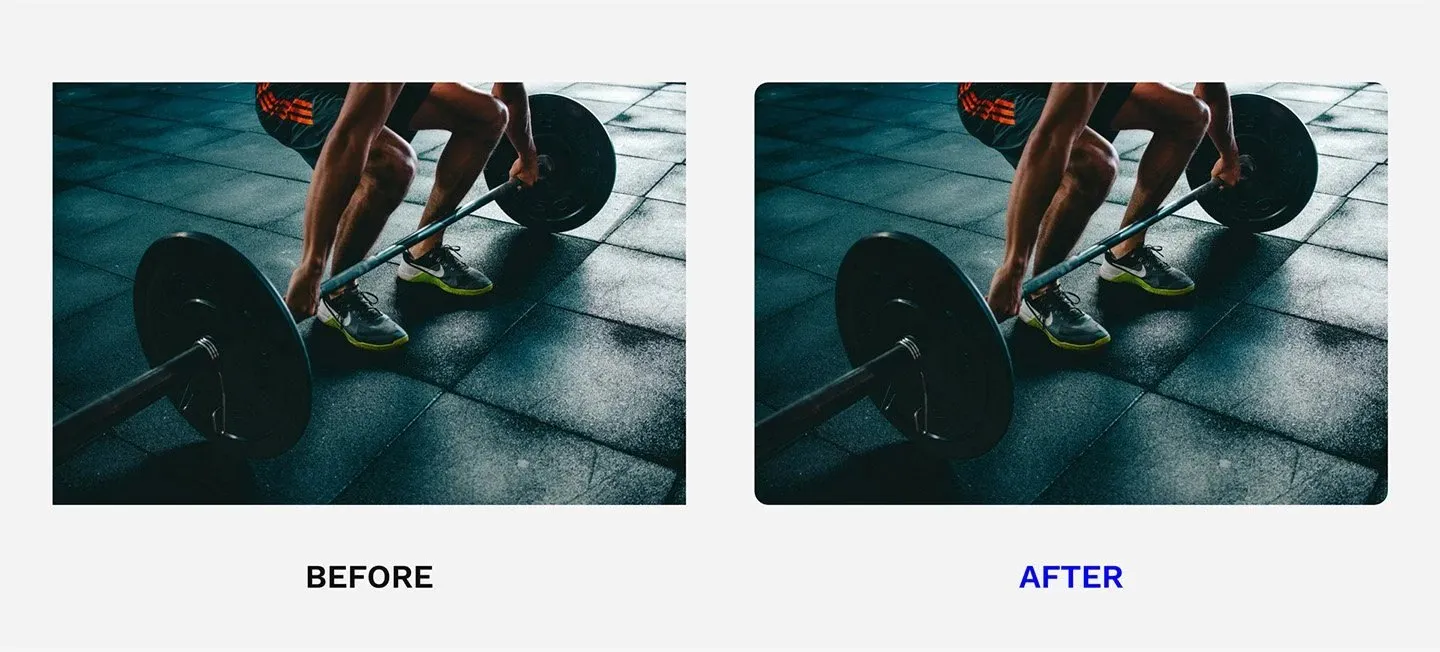
This will round the corners of ALL of the images on your Squarespace site. To adjust the radius size (how curved the image corners look), just change “10px” to whatever value you prefer. The bigger the number, the more curved the images will look.
Save and preview
After applying the CSS for your images, remember to save your changes in the CSS editor.
Next, click the “Preview” button to view all of your images on your Squarespace website.
If all images look as expected, congratulations! You have successfully rounded the edges of all images on Squarespace 7.1.
5 Benefits of using rounded corners on your Squarespace site:
1. Modern Aesthetic
Rounded corners provide a contemporary and sleek look, aligning with modern web design trends. This can make your Squarespace website appear more up-to-date and stylish, which is appealing to visitors.
2. Softened Visual Impact
Rounded corners tend to soften the visual impact of images, making them more approachable and less harsh compared to sharp-edged rectangles. This can create a more welcoming and user-friendly atmosphere on your Squarespace website.
3. Improved Focus
By reducing the prominence of the image edges, rounded corners can help direct the viewer’s focus more effectively towards the content of the image itself. This subtle emphasis can enhance the storytelling or message conveyed by the image.
4. Enhanced Consistency
Using rounded corners can create a cohesive and consistent look across different images and sections of a website. This uniformity can improve the overall design harmony, making the site easier to navigate and visually pleasing.
5. Better Integration with Design Elements
Rounded corners can help images blend more seamlessly with other design elements on the page, such as buttons, cards, and icons that also feature rounded edges. This integration can contribute to a more unified and polished design on your Squarespace website.
Frequently asked questions
Can I round image corners in Squarespace without code?
On a single image block, yes: click the block, open the Design tab and use the corner radius slider. The CSS in this guide is for when you want every image rounded at once, or for the places with no slider, like gallery sections, blog summaries and portfolio thumbnails.
The CSS didn’t change anything. What am I missing?
Four things to check. Custom CSS needs a Business plan or above. The Custom CSS panel has to be saved, not just closed. Some sections put the image inside its own wrapper, so the corners are being cut off by the parent: add overflow: hidden and the same border-radius to the wrapper. And if you’re looking at the editor rather than the live site, preview it in a new tab.
How do I round the corners of just one section?
Give the selector a section id. In the editor, open the section’s settings and copy its id (it looks like #block-yui_… or a section data attribute), then write the rule as #your-section img { border-radius: 10px; } so it only applies there.
Can I round video and gallery corners too?
Yes. Add video and the gallery item classes to the same rule, or set the radius on the section’s wrapper with overflow: hidden, which clips everything inside it, including video embeds.
Does this work on Squarespace 7.0?
The CSS does; the Design tab slider doesn’t exist on 7.0. On 7.0 the Custom CSS panel is under Design → Custom CSS instead of Website Tools.
Your users will thank you for adding this.
Got bigger changes in mind than this one? See how I work as a Squarespace website designer for UK businesses, or read my honest list of the best Squarespace website designers in the UK before you choose.
Congrats! You’ve officially reached the bottom of the article.