How to Duplicate a Squarespace Website (2026 Guide)

By Nick Croce

Short answer: to copy a whole site, go to your Account Dashboard (not inside the site), click the … menu on the site’s card and choose Duplicate Website. The copy appears at the top of your dashboard with “(Copy)” after its name, as a new trial site. To copy a single page, open Pages, hover the page, click the gear, scroll down and click Duplicate Page.
Learn step-by-step how to duplicate your Squarespace website safely — perfect for redesigns or testing.
Making big changes to your Squarespace site can feel stressful. What if you break your layout, lose content, or mess up your live site? The solution: duplicate your website first. Squarespace makes this process super simple with its built-in Duplicate Site feature.
In this guide, you’ll learn step-by-step how to duplicate your Squarespace 7.1 site safely, what carries over, and what doesn’t — so you can redesign, test, or experiment without any risk.

Why You Might Need to Duplicate Your Squarespace Site
Duplicating your site is useful when you:
- Redesign: Test new layouts, colors, or structure without touching your live site.
- Experiment: Safely trial CSS, plugins, or integrations.
- Create backups: Have a fallback version before making big changes.
- Run campaigns: Use separate versions of your site for different audiences.
Think of your duplicate site as a sandbox — a safe testing ground where nothing you do can harm your live version.
Duplicate your site
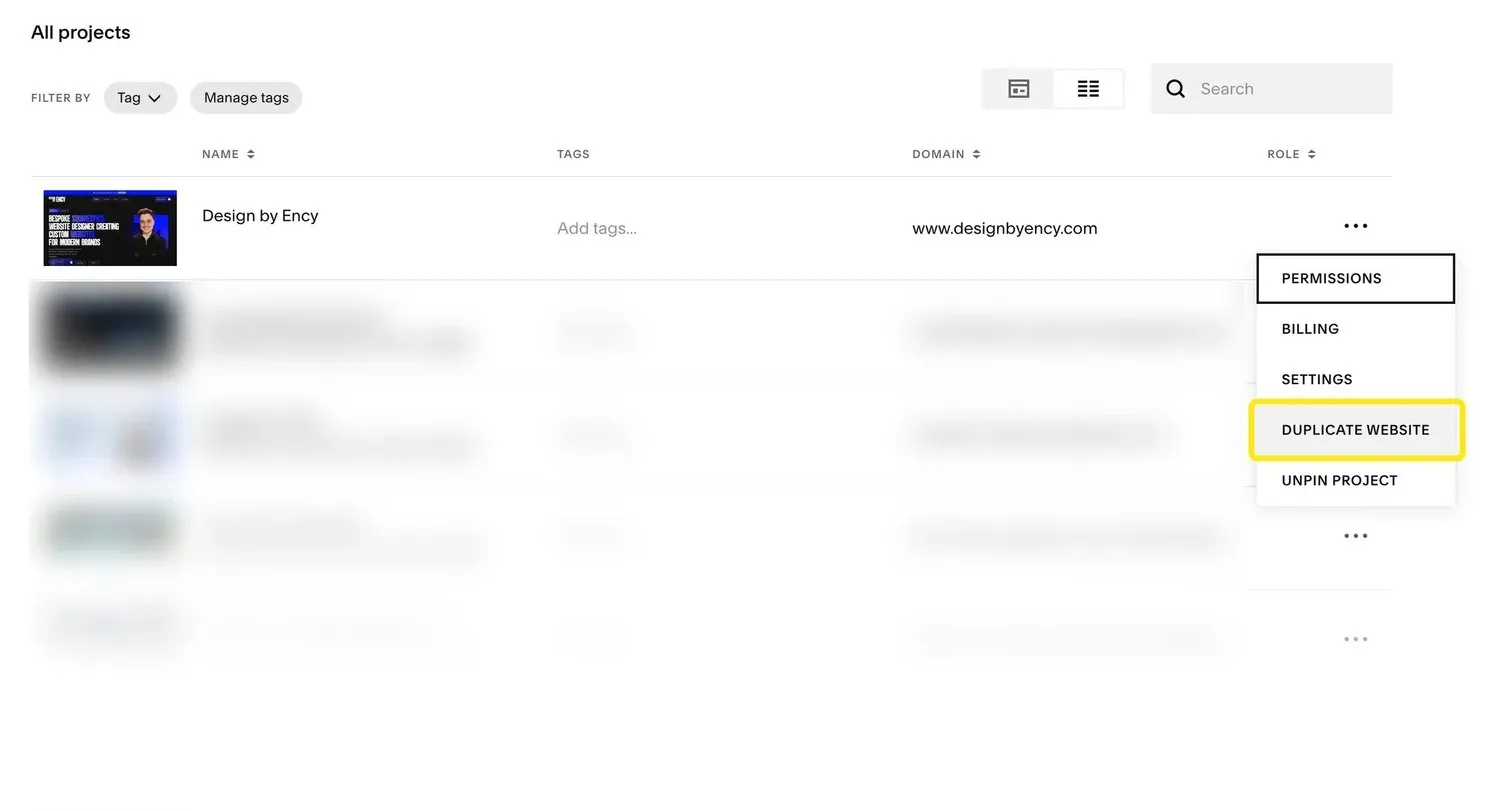
- Log in and go to your Account Dashboard, the screen that lists all your sites. You need owner or administrator permissions on the site.
- Click the … (three dots) on the site you want to copy.
- Click Duplicate Website and confirm.
The copy appears first in your dashboard with “(Copy)” added to its title. It’s a brand-new trial site, so it needs its own billing plan before it can go live. Squarespace can’t duplicate sites with more than 150 pages, Developer Platform sites, or old Cover Page plans.
What comes across in the copy:
- Every page, section, layout and block
- Blog posts and other collection items, galleries and images
- Fonts, colours, styles and your template
- Site title, logo, languages and regional settings
- Custom CSS and code injection
- Member Sites
Know What Doesn't Copy
Not everything carries over when duplicating. Here’s what you’ll need to handle separately:
- Domains and add-ons: your domain stays on the original. Email Campaigns and other subscriptions don’t copy.
- Selling settings: products may copy, but orders, discounts, subscriptions and payment settings don’t.
- Anything that needs a login: Google Analytics, Acuity Scheduling, Mailchimp and other third-party connections have to be reconnected.
- Site-specific panels: analytics history, billing, contacts, form storage.
- Odds and ends: audio files, blog comments, saved sections, stock images and asset library items.
Use Your Duplicate Safely
Now that you’ve got your duplicate, here’s how to get the most out of it:
- Test new design ideas before going live.
- Build landing pages or custom templates in a safe environment.
- Experiment with CSS, code blocks, or custom JavaScript without risk.
- Run A/B tests by duplicating again and tweaking different versions.
Launch Your New Site
Once you’re happy with your duplicate site:
- Add a Squarespace plan to the duplicate.
- Connect your custom domain.
- Cancel billing on your old site once everything is working smoothly.
Only need to copy one page?
You don’t have to duplicate the whole site for that. In Squarespace 7.1:
- A page: open Pages, hover the page, click the gear icon, scroll down and click Duplicate Page, then Confirm.
- A section: click Edit on the page, hover the section and click the duplicate icon. The copy appears underneath.
- A block: click the block and press ⌘ D on a Mac or Ctrl D on Windows.
Can you duplicate index pages in Squarespace?
No. Index pages (Squarespace 7.0), and collection pages in either version (blog, store, portfolio, events, gallery), can’t be duplicated, and nor can dropdown folders. The workaround is to create a new page of the same type and duplicate the contents into it: for a blog, duplicate the posts one at a time; for an index, add a new index and re-add the sections. Regular pages, individual sections and blocks all duplicate normally.
Common Mistakes to Avoid
- Assuming commerce products will copy over (they don’t).
- Forgetting to reconnect third-party integrations.
- Skipping a full test before pointing your domain to the duplicate.
Conclusion
Duplicating a Squarespace site is quick, safe, and one of the best ways to experiment without fear of breaking your live site. Whether you’re planning a redesign, testing a new feature, or just want a backup, the Duplicate Site tool makes it easy.
Key Takeaways:
- Duplicate from the Account Dashboard → … → Duplicate Website, not from inside the site.
- Pages, design, content and code copy. Domains, selling settings, integrations and analytics don’t.
- Test everything on the copy before moving your domain and cancelling the old plan.
Want expert help duplicating or redesigning your Squarespace website?
Frequently asked questions
Where is the Duplicate Site button in Squarespace?
It moved. It’s no longer under Settings inside the site. Go to your Account Dashboard, click the three dots on the site card, and choose Duplicate Website.
Does duplicating a Squarespace site copy the domain?
No. The domain stays connected to the original. When the copy is ready to go live, disconnect the domain from the old site and connect it to the new one.
Is the duplicate site free?
It starts as a free trial. To publish it you add a billing plan, so you’ll briefly be paying for two sites until you cancel the old one.
Can I duplicate a Squarespace site to a different account?
Not directly. Duplicate it in your account, then invite the other person as a contributor and transfer ownership from the site’s Permissions panel.
If you’d rather have this done for you, along with the rest of the site, that’s what I do as a UK Squarespace website designer. Still comparing designers? Start with my top 10 Squarespace designers in the UK.
Congrats! You’ve officially reached the bottom of the article.