How to Add a Map to Squarespace

By Nick Croce

Short answer: click Edit on the page, then Add Block → Map, type your address, style it under Design and click Save. One Map block shows one pin; for several locations, or the Google Maps look, embed a Google Map in a Code block instead (Business plan and up). Both are below, step by step.
Adding a map to your Squarespace website is a great way to help visitors find your physical location, whether it’s a store, office, or event venue.
Here’s a simple guide in six steps to add a map to your site.
Log into Your Squarespace Account.
First, navigate to Squarespace and log in to your account. Click on your website you want to add your map into.
Open the page and add a block.
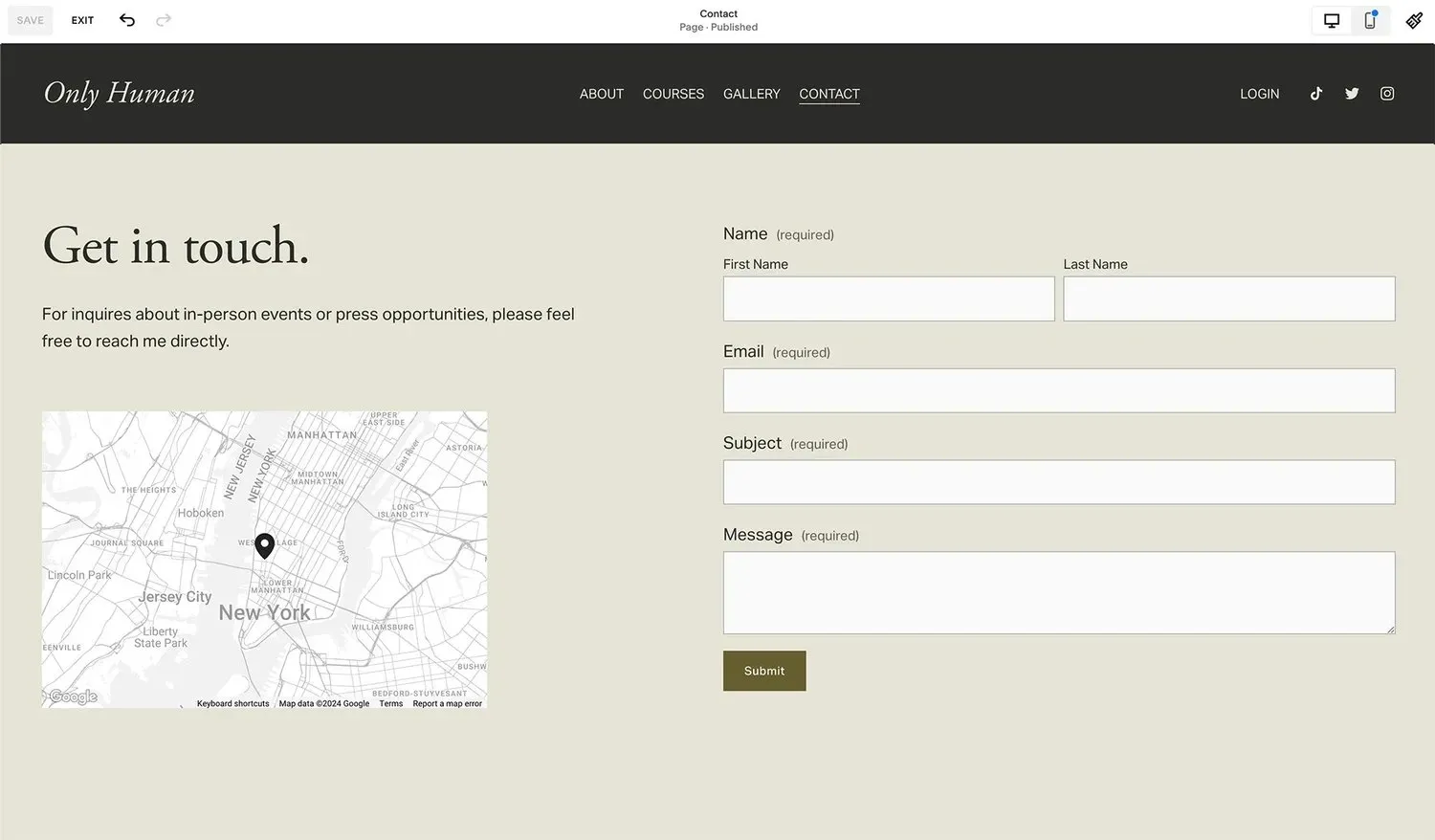
Once logged in, Go to the Pages section on the left-hand side of the editor, and click on the page or location where you want your map to go. A great place I usually put maps are at the bottom of the homepage, or on the Contact page of of a website - it’s a great way for users to find your location before they reach out!
Once you’ve found where you want to add your map, click the + Add Block button.
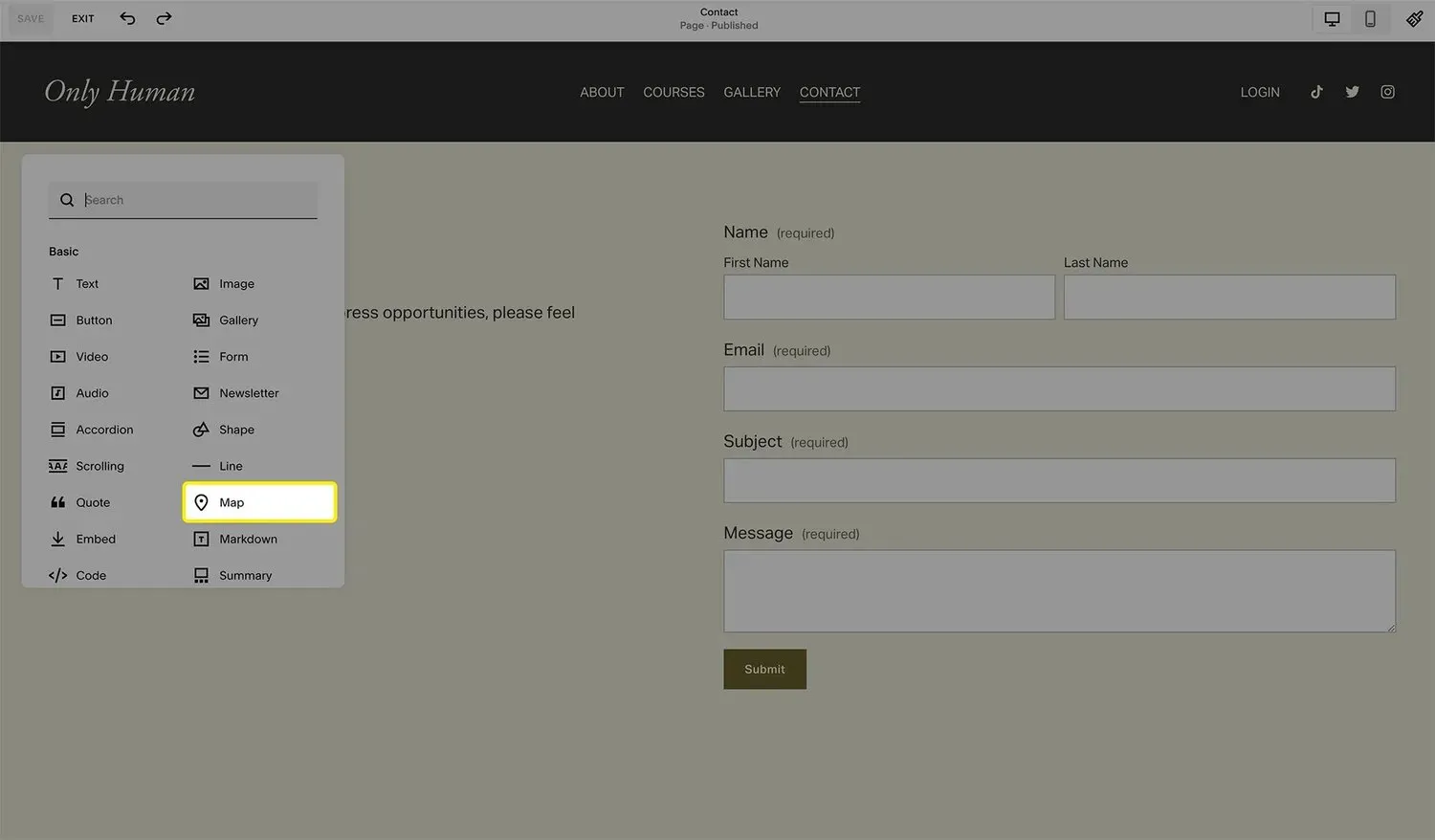
Add the Map Block.
Now scroll down and find the Map block, which will display the location map for your business.
Configure Your Map.
Once the Map block is added to your page, you can move it where you want your links to appear.
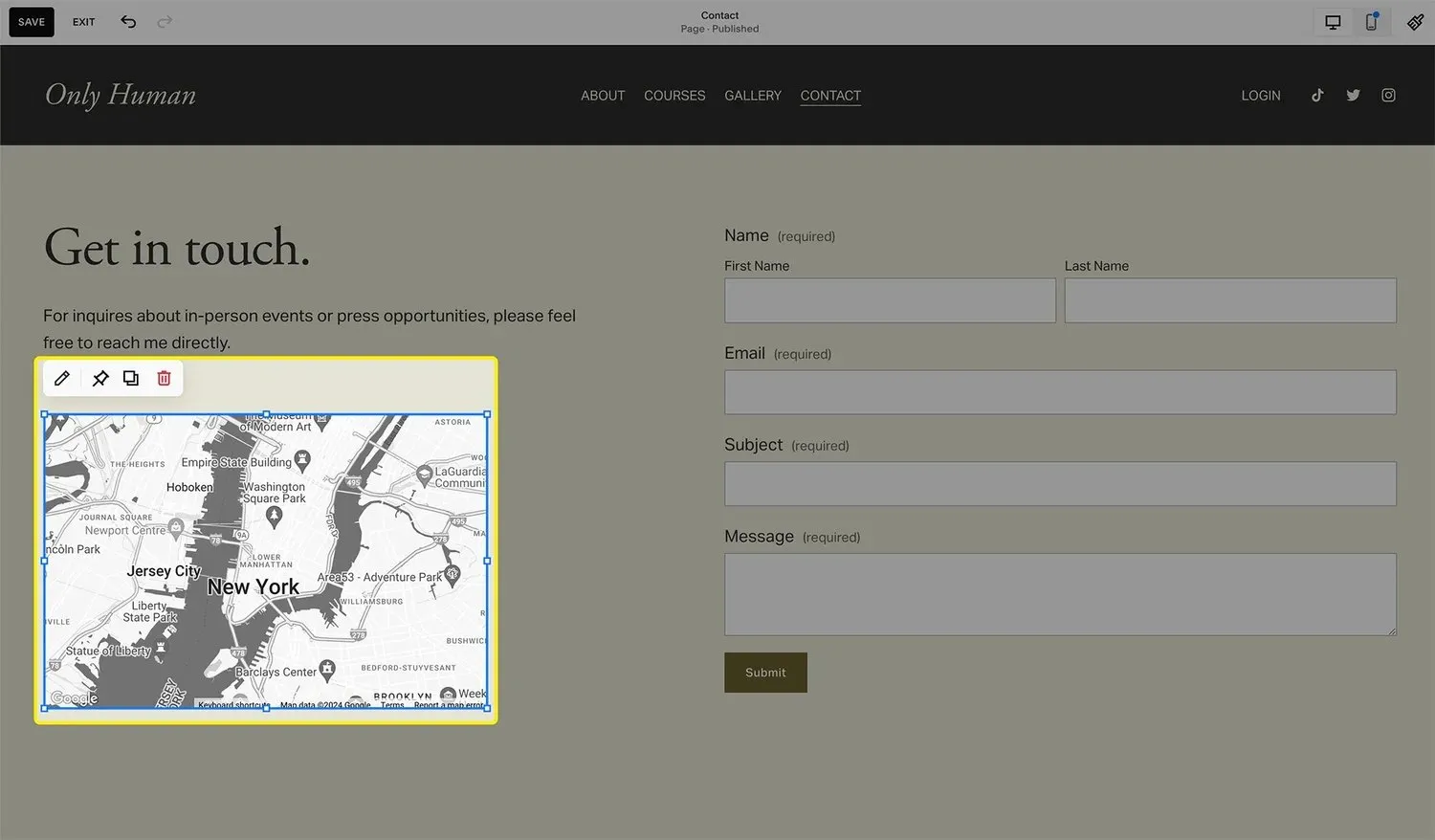
To add in your business address, click the Edit icon (pencil).
From here, you can add in your business address and business name to update the map’s preview.
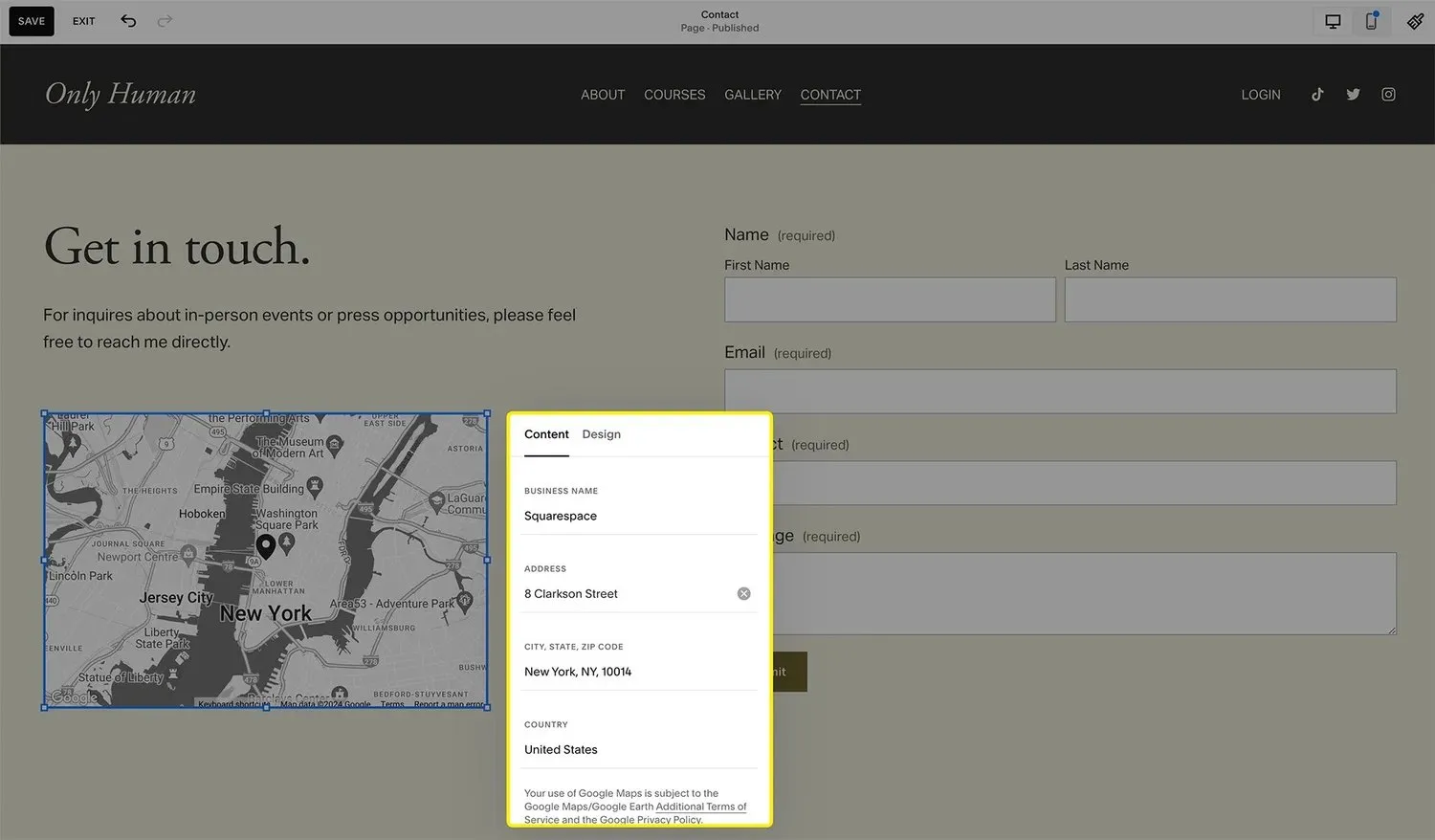
Design and Style your Map.
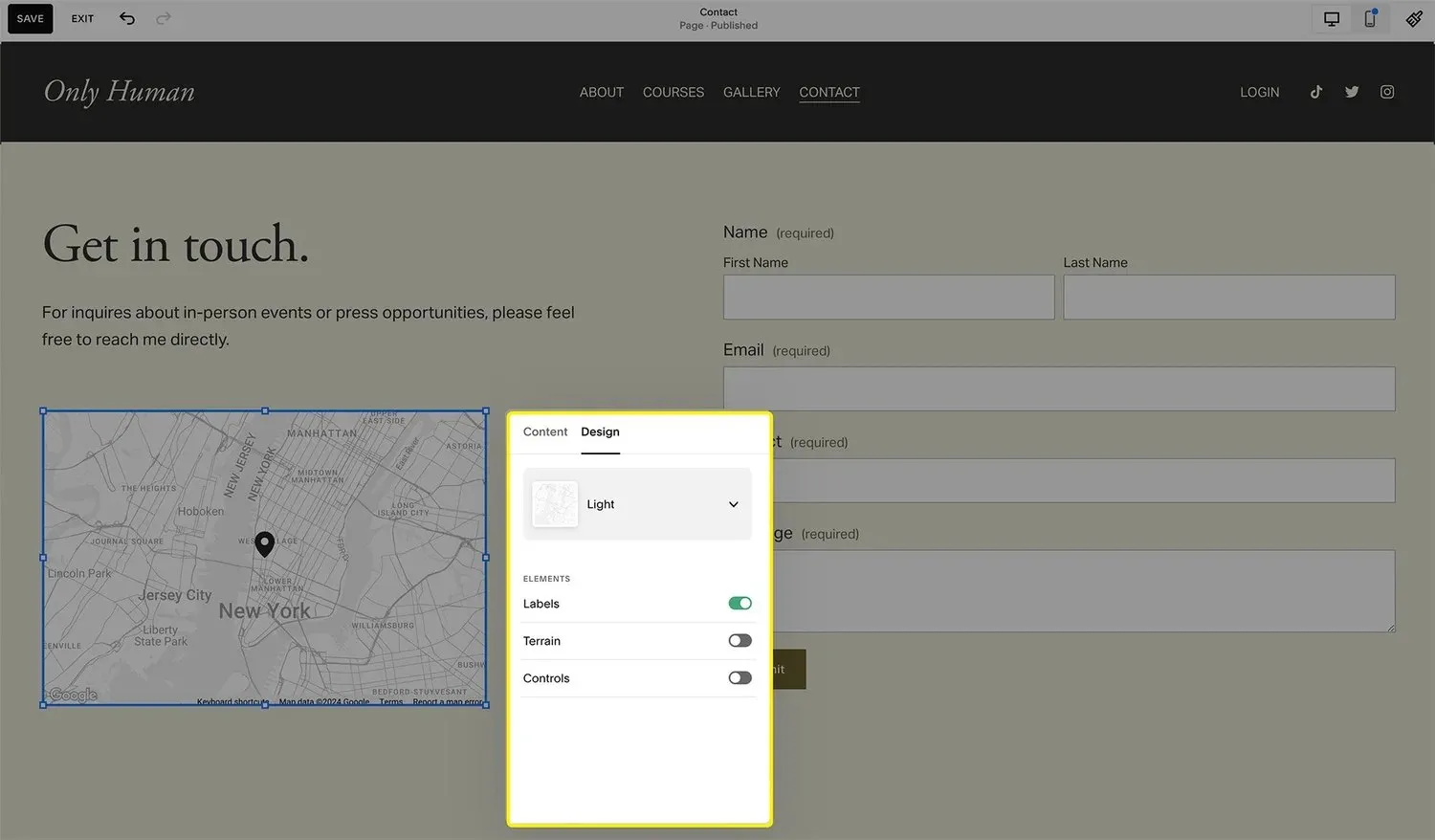
Now is the fun part! Click on the Design tab at the top, and style your map to match your website’s look and feel.
There’s a few different map types you can use, including: satellite, light and dark options!
You can also change if you want labels, terrain detail, and map controls switched on or off too - to give your users more control.
Save your Changes!
That’s it! After configuring your map and customizing the design, click Save in the top-left corner of the page editor.
Your changes will be applied to your live website immediately, and you’ll be good to go!
How to add a Google Map to Squarespace instead
The Map block is the quick option, but it only shows one pin and its styling is limited. If you want the familiar Google Maps look, reviews and directions built in, or a map you’ve customised in Google, embed Google’s own map:
- Open Google Maps, search for your business or address, and click Share.
- Choose the Embed a map tab, pick a size, and click Copy HTML. You get an
<iframe>snippet. - Back in Squarespace, add a Code block where you want the map, paste the snippet in, and set the block’s mode to HTML.
- Click Save. If the map looks squashed, change the
widthin the snippet to100%and give theheighta fixed value like400.
Two things to know. Custom code blocks need a Squarespace Business plan or above, so on the Personal plan stick with the Map block. And an embedded Google map sets Google’s cookies, so if you’re in the UK or EU it belongs in your cookie banner and privacy policy, which my privacy policy guide walks through.
Multiple locations and interactive maps
One Map block holds one address. For two or three locations, the simplest fix is one Map block per location, each with its own heading, side by side in a two or three column layout. For more than that, build the map in Google My Maps, add a pin for every location with its own name and description, and embed it with the Code block method above: visitors get a single interactive map they can click around, and you can add or move pins later without touching the website.
Proper store locators with search-by-postcode are a step beyond either; they’re third-party embeds, usually paid, and worth it only once you have a dozen or more locations.
Frequently Asked Questions
Here are some frequently asked questions about adding a map to your Squarespace website:
Can I add multiple locations on the same map?
Currently, the built-in Map Block in Squarespace supports only a single location at a time. However, if you want to display multiple locations, you can create a custom map with Google Maps, embed it in your Squarespace site, and include as many markers as you need.
How do I adjust the map’s size?
You can change the map’s size by resizing the Map Block within the page editor. Simply hover over the edges of the block and drag to resize. For more precise control, try adjusting the layout or column width in the editor, as the map will automatically resize to fit the allocated space.
Can I change the style of the map?
Squarespace provides a few customization options in the Map Block, such as zoom level and color scheme. If you need more detailed style options, you might consider creating a custom-styled Google Map and embedding it using the Code Block. Google Maps offers different themes, like dark mode or minimalist, which may fit your brand style.
Is it possible to embed a Google Map instead of using Squarespace’s Map Block?
Yes, you can embed a Google Map by copying the embed code directly from Google Maps. Once you have the code, add a Code Block to your page in Squarespace, paste in the code, and save. This method is especially useful for multi-location maps or custom-styled maps.
Why isn’t my location displaying correctly on the map?
This can happen if the address entered isn’t recognized by Squarespace’s map provider. Try re-entering the address, double-checking for typos, or using a nearby landmark. If issues persist, creating an embedded Google Map is a good alternative, as it typically offers more precise address handling.
Will the map work on mobile devices?
Yes, the Map Block in Squarespace is mobile-responsive, so it should adjust automatically to fit screens of different sizes. If you use a custom Google Map, it should also be responsive, but it’s best to preview your site on multiple devices to ensure it displays as expected.
Your users will thank you for adding this.
Got bigger changes in mind than this one? See how I work as a Squarespace website designer for UK businesses, or read my honest list of the best Squarespace website designers in the UK before you choose.
Congrats! You’ve officially reached the bottom of the article.